
Archive or Delete Old Documents
How to Locate a Document in the Editor
If you find an old document using search or if you see it on your website or in your Docs folder, you can archive it or delete it or update it.
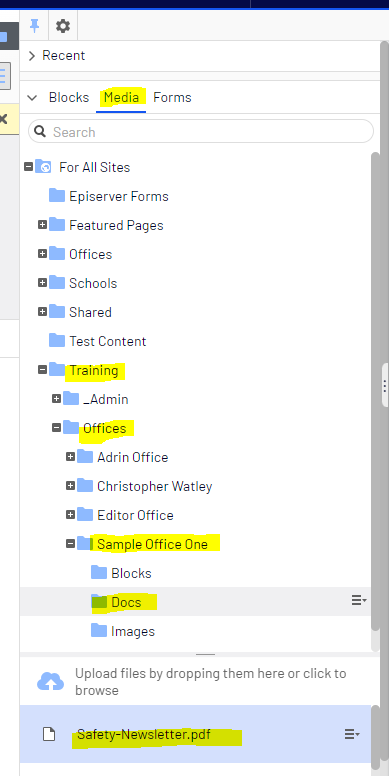
To archive or delete a document, find the document in your Docs folder on the Asset Pane on the Media tab.
You can click on a document on a web page to open it up to see the URL or hover over the link using the mouse to see the URL.
You can find the exact location of the document by looking at its URL (link) in a browser. After the words "globalassets", you will see the folder navigation to find the document.

Then you can navigate to the document in the Assets < Media Tab:
How to Delete a Document
Note: this will permanently delete the document from public view and search. You cannot recover it after 30 days.
Once you locate the document, click on the title of the document so it is highlighted in blue.
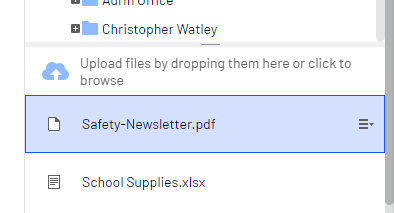
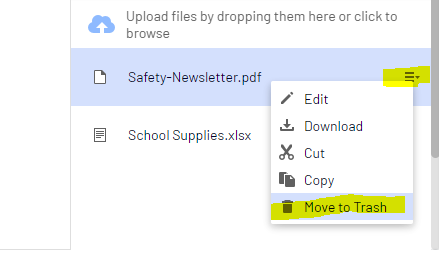
Then click the options menu that appears on the blue highlighted title to the far right and select "Move to Trash"
A window will appear in the center pane highlighting what you will delete and what blocks and pages the link to this document is on.
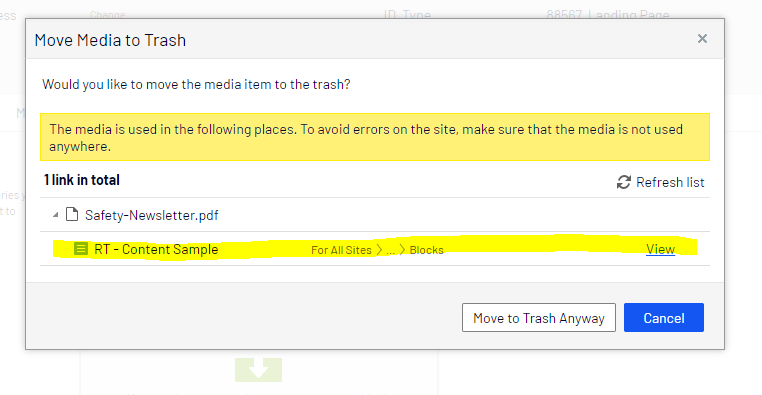
If you do not remove the document from these blocks or pages, the links will be broken. Click Cancel to find the blocks and pages and remove the link to the document.
To continue to delete the document, click on "Move to Trash Anyway."

The document will immediately be removed from public view and from search. After 30 days, the document will not be able to be recovered from Trash.
How to Archive a Document
Once you locate the document, click on it to open it in the center pane of the Experience Editor.
If you see the document like this in the center pane, click on the All Properties button next to the Options button on the top right of the pane.
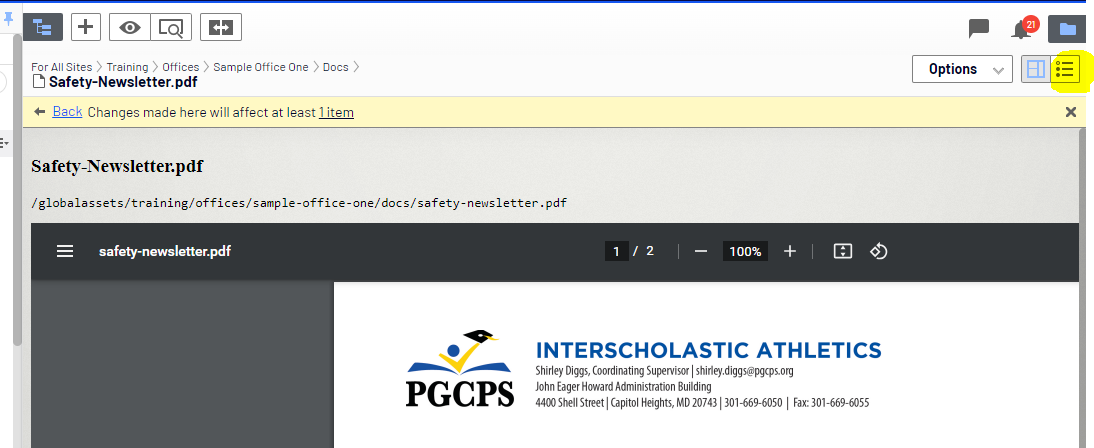
You should now see the document like this:

Now, follow the instructions to archive content