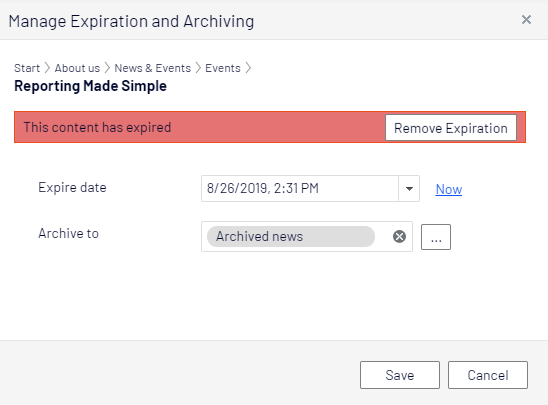
Expire and Archive Content
Expiring and Archiving
Normally, web content never expires, but you can set pages and blocks to expire at a certain time in the future or immediately. Expired content is not displayed on the website but remains in Optimizely CMS. You can remove the expiration from the content to make it appear on the website again.
Note: The expiration sets a stop publish date on the content and this date applies to all versions of the content. For example, if you set a page to expire and then create a draft from the latest published version and publish that draft, it will still be expired and not displayed on the website. You must manually remove the expiration for the page to be public.
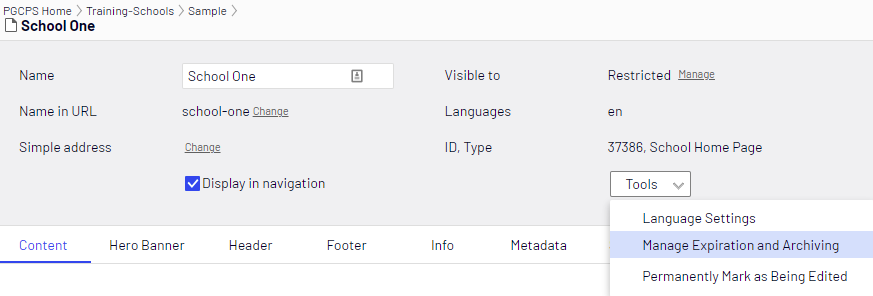
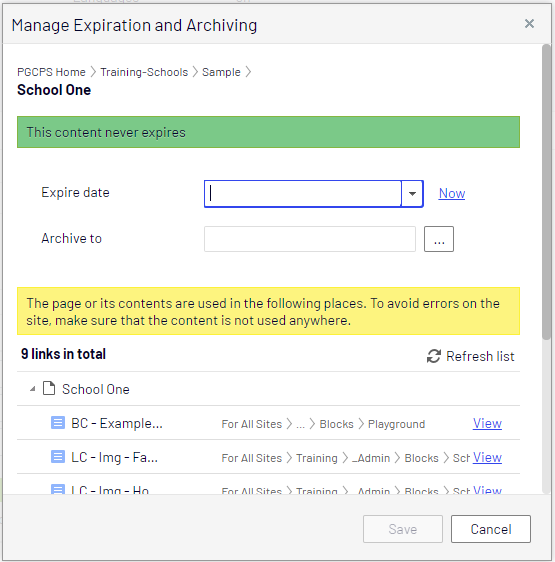
Setting an expiration time is done in the All Properties editing view by selecting Tools > Manage Expiration and Archiving. Select Now if you want expiration to apply immediately.
Archiving of expired content
Optimizely has a built-in archiving feature where pages with a set stop publish time are automatically moved to a defined archive branch when the time has passed. This is useful when you have news pages in a listing where you want to remove old news from the listing, but still keep the pages in an archive. Note: the expiration date is removed when the items are moved to the archive.
Archiving expired content is done in the Manage Expiration and Archiving dialog box by selecting the page branch to which you want to move the expired page.