Everything for Editors
Preview Content
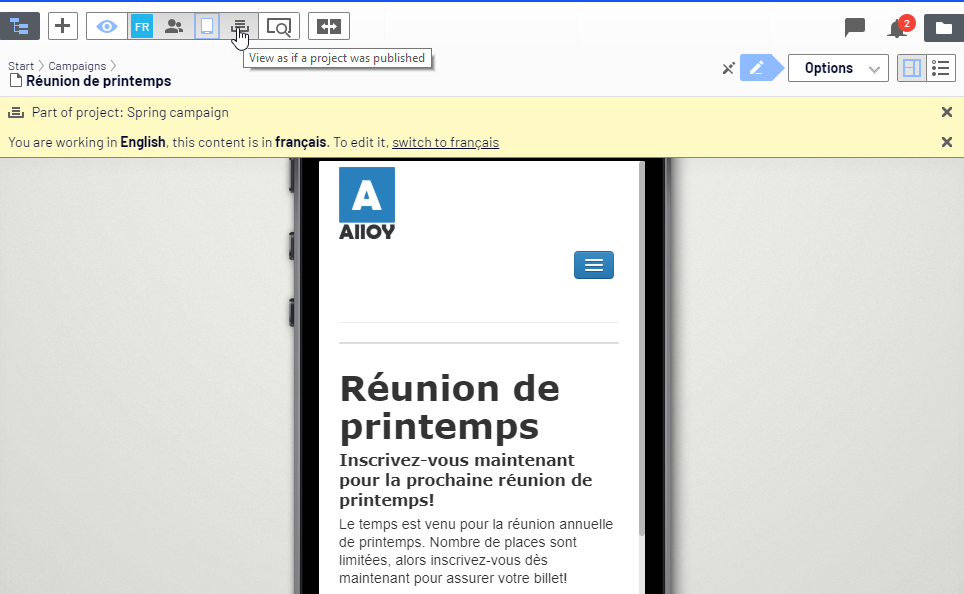
In Optimizely, you can preview content while you are editing to view content as visitors will see it when published. The preview button  hides the surrounding on-page editing frames and panes which allow you to navigate throughout the website.
The preview option can display different things depending on how you are working with Optimizely CMS:
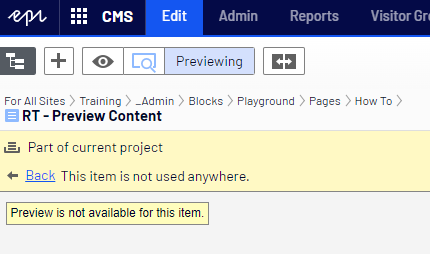
- You cannot preview blocks & documents - Blocks must be added to a page to view its preview.
- You can preview image assets - Preview of images displays the actual size of the asset.
- If you are not using projects - The preview option displays the primary draft version of each page. If you are not in a project you are editing the primary draft.

- You are using the projects feature - The preview option displays the active project drafts. Note: for page templates: School General Detail Page & School Faculty Detail Page you must set the page as the primary draft to preview your edits.
Setting Primary Draft
This only applies while working within the project feature and working with templates: School General Detail Page or School Faculty Detail Page
- Select the page template from the navigation pane.
- Edit/Update the page as needed.
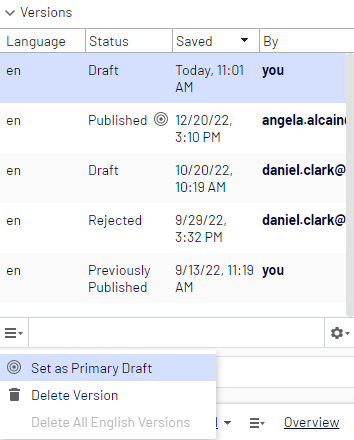
- Select & highlight the "new" draft of the page in the Versions Gadget.
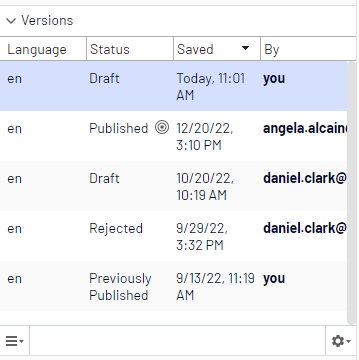
- Select the gadgets "More Options" menu and choose "Set as primary draft"
- Preview the page to view edits/updates.
View Settings
Use View settings  to preview content with the following options:
|
Options |
Button |
Description |
|
Languages |
 |
Select a language to view the content as visitors using this language will see it. |
|
Visitor Groups |
 |
View the content as the selected visitor group will see it. |
|
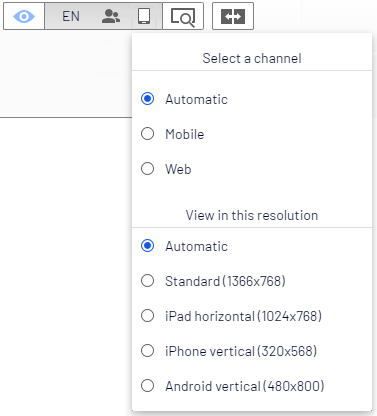
Media Channels |
 |
Select a channel and/or a resolution to see the content as it will appear with the selected settings. The options are currently not used for PGCPS. |
Example