Skip Navigation

Everything for Editors

Are you a new Editor?

Before we dive into all the technical details about editing, let's take a step back and ask:

Why a website?

While the answer may seem obvious, understanding the responsibility that you the Editor has can greatly effect our audience engagement.

User experience is king!

“Every great design begins with an even better story.”

Lorinda Mamo, Designer / Creative Director

Creating great user experiences is all about telling a story and bringing things to life. Building a detailed narrative around our users helps you to walk in their shoes and understand where they’re coming from.

Check out our Web Site Standards - for an overview of Office and School Standards

The website is only one piece of the puzzel!

There are many ways to deliver a story to your audience. How can other pieces of the puzzel help tell your story?

  • SEO (Search Engine Optimization)
    • How do you find information? You search for it! Typically on a mobile device.
    • Do you name your pages/events in ways your audience understands, at a reading level they understand?
    • Text is best!
  • Email Marketing
    • When marketing your pages through email avoid 3rd party communications (Google docs, external resources, 3rd party newsletters, etc.) 
    • Email links to your pages
  • Text/Phone Marketing
    • Text the link to your pages
  • Social Media Marketing
    • Take a brief summary of your web-pages to feature on Socials
    • Be sure to link back to the main web page
    • Embedded on School Homepages and Office pages
  • Calendar of events
    • Not all of our audience will view information in web form; however, maintaining a simple calendar will greatly assist those looking for accurate dated information. 
    • Be sure to link back to your web-pages where the audience will find the most up to date information.

We strongly recommend using the website as the "owner" of your story. Why? #1 Because of search. Analytics prove the majority of our audience is finding information by searching for it on their mobile devices. #2 It's easier to maintain one "winner" of information instead of maintaining multiple technologies and holders of content/data.

Lets make the user experience an enjoyable one!

Web Services

Note: We strongly recommend your marketing accounts (Google, Calendar, YouTube, Instagram, Facebook, X, etc.) are created with the main Office/School brand account. This allows ownership to be transferred or managed by staff. Failure to do so risks years of social history and content being lost with an individuals transfer.

Collection of Information for Web Posting

Now that we've covered "Why" a web page is needed, "What" should an editor add to the website?

Ask yourself: "Am I the owner of this information?"

  • Every request to "add to the website" should be investigated, DO NOT assume the information is correct as it is your responsibility to keep content up to date and accurate.
  • There is a high possibility the information you're looking to post already exist. Who is requesting the update? Where did this information originate from? These are questions you must ask yourself before any update or additions are made.
  • Avoid making duplicates and copying information you do not own, work smarter by linking to the source! 

 Search is your friend!

Text is best!

  1. Tells our viewers what we're about, what we offer, and how to contact us.
  2. Gives search engines information telling them what each page is about. 
  3. Easily read and visible, consistent font type and color that contrast nicely with our backgrounds.
  4. Best for compliance, easily read by screen readers and allows for easy browser based language translation.

Title & Name your pages using language at a reading level our audience understands. Not everyone understands PGCPS jargon, plain English at a 5th grade reading level is best. Avoid files, (PDFs, Word, Excel) info-graphics and content that interrupt the user experience. 

Can't avoid posting a file? Check out our: Document Naming Guideline

Working with Images

Images should be used for decoration only!

Web Services

You can waste a lot of time trying to find the "perfect" image, not to forget; adhering to 508 compliance, copyrights, and the skill needed for general image editing. You can easily avoid the added responsibility by:

What about Google? (Sites, Documents, Other)

Typically it depends on the "type" of Google asset your looking to feature. Our main use of Google is through: Google Sites, Google Documents & Other (Google slides, slide-shows, etc.)

Google Sites

Should not be used! Why? For a number of reasons, but the main ones are:

  1. Ownership
  2. Not apart of search
  3. Compliance, copyrights & out of date information
Google Documents

Typically documents should be used to feature large amounts of data/info to display. Think large data charts or multi-page manuals and detailed instructions. Google documents should not be used for basic newsletters, announcements or "one-pagers" as we like to call them. Avoid lazy editing and get the information into text format! The PGCPS website works as an official "letterhead."

Other

There are times when Google products work well within the Optimizely web editor:

  1. You can publish your Google Slides to the web and embed the slide into your web pages to create a "slide-show"
  2. Feature data charts.

How To Edit in Optimizely: A Step-by-Step Guide for New Editors

  • Introduction
  • Step 1: The Experience Editor
  • Step 2: Navigation & Asset Panes
  • Step 3: Projects
  • Step 4: School Pages & Blocks
  • Step 4: Office Pages & Blocks
  • Step 5: Quick Edit
  • Step 6: Creating Pages & Blocks
  • Step 7: Media Asset Management
  • Step 8: Publishing
  • Next Steps

Click the above tabs to learn more abut editing in Optimizely or check out our resources for new editors below ↓

Step 1: The Experience Editor

Review:

Once you've entered the Experience Editor note your edit method view (On-Page or All-Properties) and familiarize yourself with the editor layout & general features.

Note: Editor layout is saved to the user account, add/remove/rearranging your gadgets only needs done once.

Description:

Description:

Step 2: Navigation & Asset Panes

Navigation Gadget

Review:

In the navigation gadget familiarize yourself with the different tabs and icons within each. Get used to selecting pages as well as "drilling down" the tree nodes to access sub-pages.

Note: Drill down, to access your School or Office. If the page properties are grayed out, this means you lack permissions to edit. You may continue to view all page and blocks but permissions are needed for editing rights. Contact us for all permission inquiries.

Assets Gadget

Review:

The Assets Gadget is seperated by 2 tabs: Blocks and Media. Both share the same folder structure, however; you must select the correct tab to view the chosen content type. The Experience Editor remembers your folder location under each tab.

Note: Drill down, to access your School or Office. The Blocks/Docs/Images folders were created to keep content organized, DO NOT REMOVE these folders. You may create sub-folders to further organize your assets. Use these folders when creating and accessing the specific asset type.

Step 3: Projects

Review:

Be sure to select your Office or School project and double check before editing. Use the project Overview page to view all the active "working on" items.

Note: Be sure to refer back to Working With Projects when needed. We recommend removing project items after they've been published, clear the clutter! Remember to publish your media items (PDFs, Images, Docs) as well.

Step 4: School Pages & Blocks

Review:

Understanding basic terminology, how to find and manipulate default page properties and understanding how the Title and Metadata properties can be used is critical to maintaining a healthy CMS.

List of available Page templates

View details about all available School page templates. See live examples and explanations for each page property.

Note: Each School only has 1 School Home Page page because they work in conjunction with our School Directory Page. Web Services and School editors collaborate on some areas in your School Home Page: School Info, Helpful Links, Resources & Related Content areas.

Blocks

Review:

Blocks are used to present information to your audience. Most of your editing experince will be presented through your usage of Blocks.

Note: By default the information within a published block is not entered into our search engine until the block is placed onto a published page.

Step 4: Office Pages & Blocks

Review:

Understanding basic terminology, how to find and manipulate default page properties and understanding how the Title and Metadata properties can be used is critical to maintaining a healthy CMS.

List of available Page templates

View details about all available Office page templates. See live examples and explanations for each page property. When you begin to create new pages this is a good place to review and find which page template can work best.

Note: Each Office only has 1 District Office Detail page because they work in conjunction with our Office Directory Page. Typically you'll use Landing Page for 99% of your page creation, as it provides the most flexible layout.

Blocks

Review:

Blocks are used to present information to your audience. Most of your editing experince will be presented through your usage of Blocks.

Note: By default the information within a published block is not entered into our search engine until the block is placed onto a published page.

Step 5: Quick Edit

Review:

While browsing PGCPS.org logged in, editors can click the orange Epi button epi orange editor icon.png to load the editor to the browsed page.
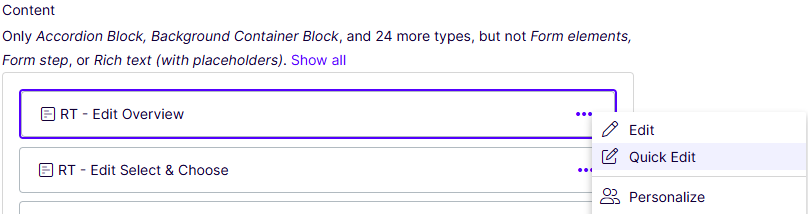
Note: Your editing view (On-Page or All Properties) will determine the page properties you can view.

Step 6: Creating Pages & Blocks

Review:

After you've created Pages and Blocks, Drag & Drop the blocks onto your page, next, you must use pages somewhere; otherwise, the only way your audience finds content is through search. Promote your work!

Be sure to Preview your edits to make sure they display as expected.

Note: Before you create any Pages or Blocks, be sure to have a solid plan of action. Use the following guides to assist:

Step 7: Media Asset Management

Watch:

Description:

Description:

Step 8: Publishing

Publish, Send for Review or Schedule

Now that you've created pages and blocks and used them somewhere, you must now complete the workflow process:


Publishing

Published content is instantly available to the public, it will be live in search immediately.


Schedule

Review: Schedule and Archive

Resources For New Editors

Returning Editor in need of a refresher?

If this is your 1st time here we recommend checking out all the details above ↑, otherwise you should be comfortable with the basic editing principals inside Optimizely and have a site currently being browsed by your audience.

A big part of a refresher is 1st double checking your site pages/assets and that your editor is in order.

Review Your Website

  • Do you have a full understanding of the editor?
  • Was content created correctly?
    • Review: Naming Convention
    • Check your folders for accuracy. Blocks, Docs, Images should all be in their respective folders.
  • Are your pages and assets up to date and being used?
    • Review: Web Site Standards 
    • Click through all of your pages and make use of the "Manage Expiration and Archiving" feature. This tells you where and how your pages/assets are being used.
      • Feel free to archive old content or delete (move to trash) all together.
    • View the metadata of your pages for accuracy.
    • Are your pages/blocks formatted well?
      • Review: Heading Hierarchy to separate sections of information and make adjustments where necessary.
      • Use ordered/unordered list styles where applicable.
    • Prioritize evergreen content.
    • Avoid the use of dates unless required.
  • Can't remember How To do something?
  • Interested in analytic data and how your audience interacts with content?
    • Go to edoctrina, search for "analytics" to sign-up for: "Using SiteImprove and Google Analytics to Improve Your Website Content"

Quick Edit

You now have the ability to quickly edit existing blocks from "content drop zones", asset folders and container blocks.menu icon

Selecting "Quick Edit" opens a dialog box that displays the properties of the selected item, allowing you to make edits. (Rich Text Block shown below)

quick-edit-dialog

Be sure to "Save" or "Publish Changes" after you complete your edits.

Looking for something more advanced?

coming soon