
Everything for Editors
School Homepage Alerts
Summary
School Home page alerts are stylized alerts that editors can create & schedule to quickly alert your audience. Typically alerts are reserved for quick reminders, weather updates, school closures & delays and any emergencies that need promoting on your school homepage. Alerts should not be created for your announcements, quick links or showcased pages.
Structure
Each school website contains a School Site Alert Index Page. This page is for structural purposes to contain all School Site Alerts. This page does not render but must be published for Site Alert children to display. School Site Alerts can be scheduled to display on your School Homepage.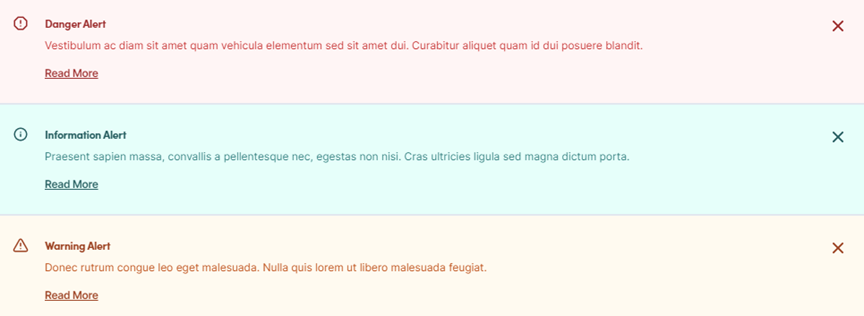
User Functionality
By default once an alert is created, the alert displays on your school home page only. They do not appear on your child pages. If the user closes the alert (Clicks the “x”) the alert will not display for the individual user until 4 hours have passed. For editors testing the alert functionality you would need to clear your browser cache to have the alert re-appear.
PGCPS Alerts
Web services have the ability to broadcast alerts to individual school homepages, in the event PGCPS broadcasts an alert, your school alerts will display as the next item under the PGCPS alert.
How To: Create Alerts
- Select your School Site Alert Index content menu and choose “New Page”
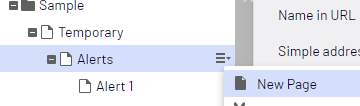
- Name the alert and click OK
- We Recommend naming the alert using general terms, as there is a chance you may want to re-use the alert for another time. Think “school closings” or “weather delays” in the event you need to use a previous alert you would only update the alert details and schedule for the current date/time.
- Fill out properties:
- Content Tab
- Alert Type: Select Info, Warning or Danger. See Image above for style.
- Heading: Enter text. Will be formatted as h3 in alert.
- Summary: Enter text. Used to display before the “Read More” link. Text will be limited to 2 lines. When the user clicks “Read More” the body property will show.
- Read More Aria Text: This property is used for 508 compliance. If you elect to enter information into the Body property this “Read More Aria Text” property must describe the body contents. For example: If the body details a winter weather closing day, then the Aria text may read as “Read more about the winter weather closing...”
- Body: Enter Rich text. Displayed after the user clicks “Read More.”
- Display Settings
- Enable: Check to enable. Box must be checked for alert to render on site.
- Start: Enter or select a date. To schedule, select a date in the future. Leave blank for immediate display.
- End: Enter or select a date. Alert will not render after date and time. Leave blank for an open-ended alert.