
Everything for Editors
Manage the School Spotlight Carousel
If a spotlight broadcast was entered in the School Container page it would display as the first item; otherwise, your spotlight would display as the 1st item.
Add New Spotlight
Click the  icon to open the spotlight item details and enter information
| Property | Detail |
| Featured Image | Click property and navigate to an Image folder to select. Recommended size: 524 x 397 |
| Title | Enter Text |
| Subtitle | Enter Text |
| Body | Enter a short description about your spotlight |
| Primary/Secondary Button Link | Click the ellipsis icon to select a page and create the link. Primary button is blue, the secondary is white. |
| Primary/Secondary Button Text | Enter Text for the button link. |
| Primary/Secondary Button Target | Select a link target. Options: Same window, New Window. Use Same window if the page exists with the PGCPS.org domain; otherwise, use New Window. |
| Start Date | Select a date and time (not required) |
| End Date | Select a date and time (not required) |
Editing, Moving and Removing Spotlights
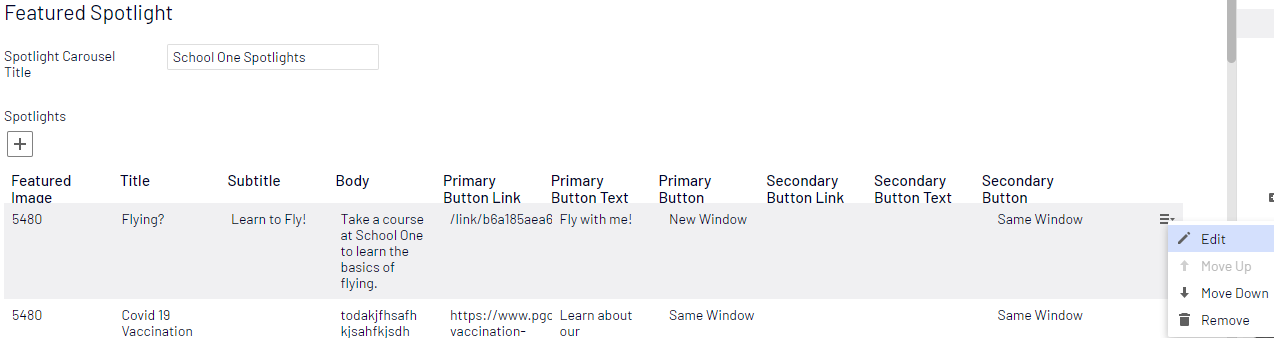
- To Edit:
- Click the options menu and select "Edit"
- To Move:
- Click the options menu and select "Move Up" or "Move Down"
- To Remove:
- Click the options menu and select "Remove"
- Note: Removed spotlights cannot be restored. You'll need to recreate any removed spotlights.