
Everything for Editors
Search Options
The Optimizely experience editor provides many ways to search for content, pages, blocks and media assets. This should be your 1st step before creating new content, search to see if it already exists! Below you will find details about each of our search areas.
Note: As editors you have viewing and usage rights to everything (this includes pages, documents and media assets) When using results from search, double check the breadcrumb trail of the selected item, this ensures the item origin. Clicking the options button displays the owner of the content.
Navigation Pane Page Search
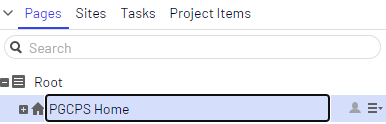
- Using the search bar above the navigation pane, search all pages within PGCPS that includes: pages in the trash, English pages and Espanol pages.
- Clicking a result loads the item in your main content area
- The page is highlighted in the navigation pane tree menu (content location)
- If the page is in the trash/Recycle Bin, property fields are disabled
- Use the breadcrumb trail to note the page location
Asset Pane Search
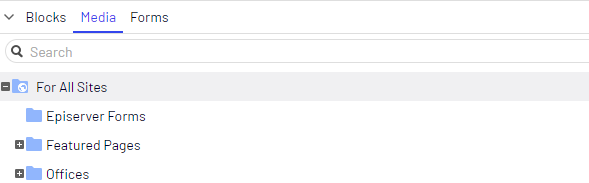
- Using the search bar above the asset pane, search all assets within PGCPS that includes: blocks and media (docs & images) The search is limited to the asset type you have selected: blocks or media
- By default you can drag the search results into content areas and content blocks where assets are allowed
- Double Clicking a result loads the item in your main content area
- All search results remain until the search bar is cleared
Top Menu Search

- The top menu search finds all pages and assets contained within PGCPS whether they are located in the trash/Recycle bin or not.
- Search results here are listed with a visual icon alerting you to the type of content (Image, doctype, block or page)
- Clicking a result loads the item in your main content area
- If the clicked result is a page it gets highlighted in the navigation pane tree menu (content location) Same for blocks and media though you may need to select the assets type (block or media) to view its location
- If the page is in the trash/Recycle Bin, property fields are disable
- Drag & Drop functionality is disabled for the Top Menu search
Header Banner Search
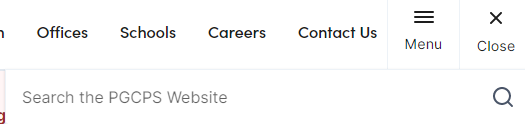
- The Header Banner search finds all publicly published pages and assets contained within PGCPS.
- You may copy and paste the URL for use where needed. Double check that “www” is a part of the URL. If “epi” is displayed, replace it with “www”