How to Add, Edit or Delete Staff Members
How to add a staff member | How to edit a staff member | How to delete a staff member
How to add a Staff Member to Faculty (Staff) Directory Page
- In the Pages Navigation Pane, click on your Faculty (Staff) Directory Page
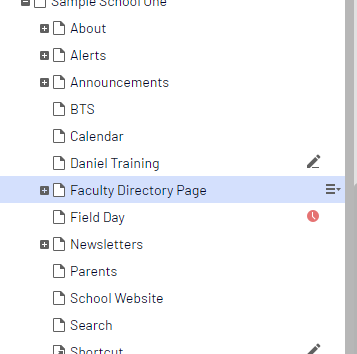
- Use the plus sign (+) next to the page title to expand the list of staff members.
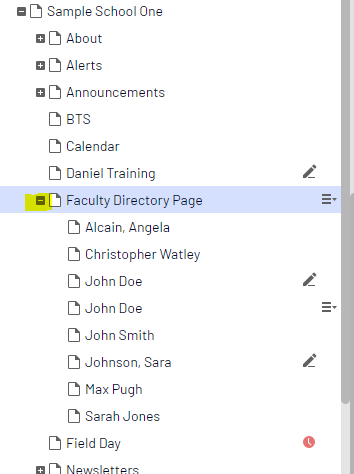
- Click on the options menu on the Faculty Directory Page title which is highlighted in blue.
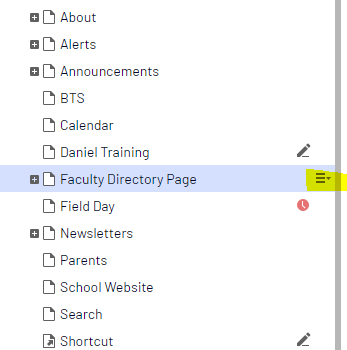
- Select New Page
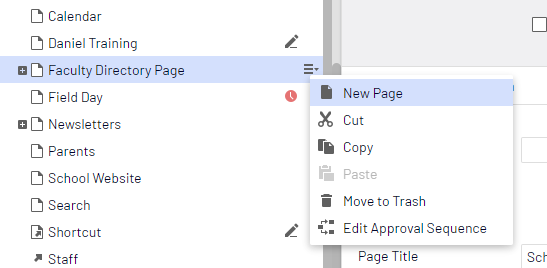
- Type in the name of your staff member (Last Name, First Name).
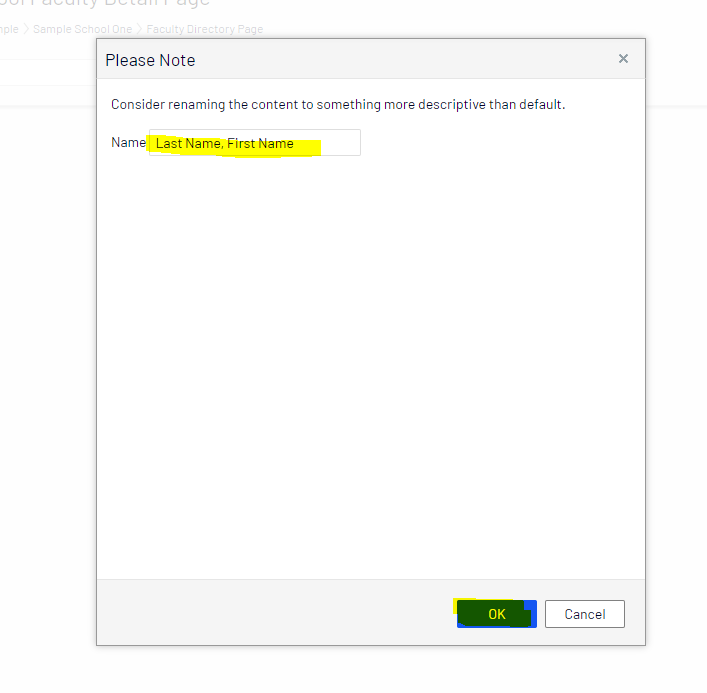
- Click OK.
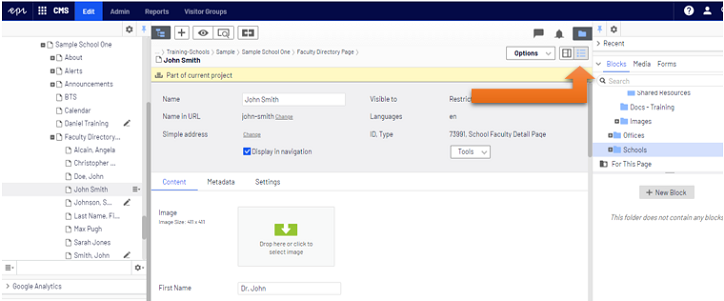
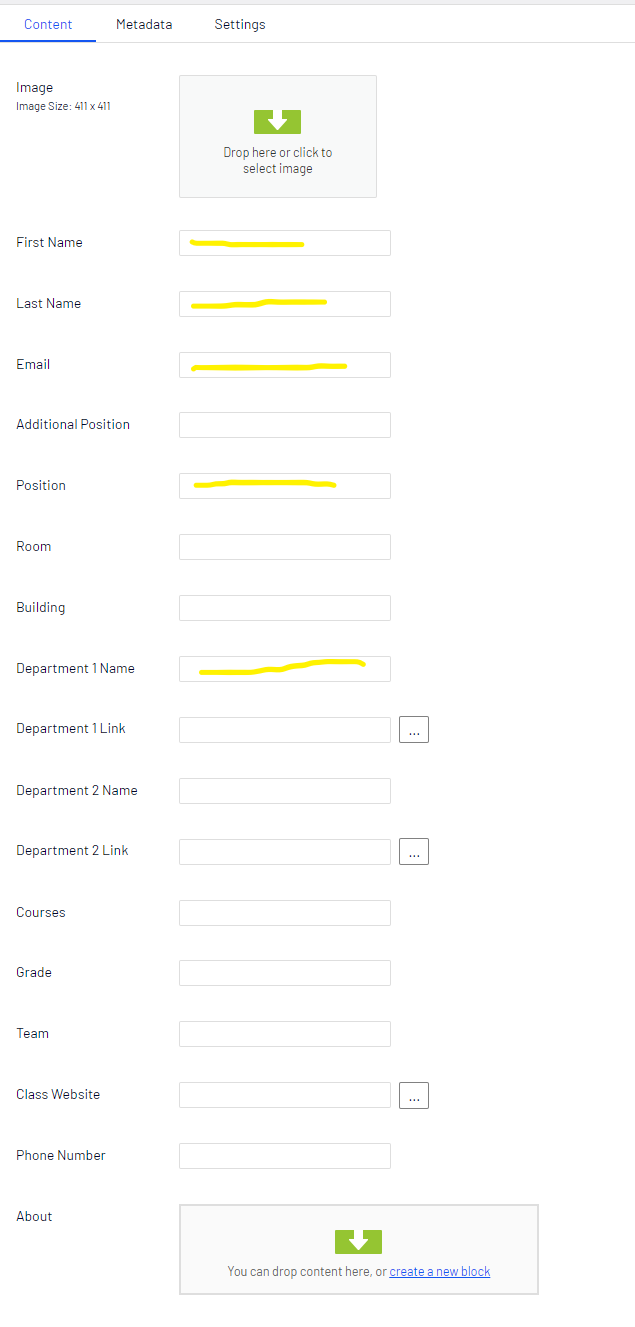
- For this next part, make sure you are editing in the All Properties View (icon next to Options that looks like a bulleted list). In the center pane of the editor, fill in as much as you would like in the fields on the content tab. We suggest to fill in at least:
- First Name
- Last Name
- Position
- Department Name
- When you have completed filling in the fields, publish the page. After publishing, your new staff member's info will be public on your website's faculty page.
How to Edit a Staff Member on Your Faculty (Staff) Directory Page
- in the Pages Navigation Pane, click on your Faculty (Staff) Directory Page
- Use the plus sign (+) next to the page title to expand the list of staff members.
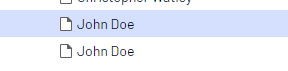
- Double-click the name of the staff member you wish to edit.
- For this next part, make sure you are editing in the All Properties View (icon next to Options that looks like a bulleted list). In the center pane of the editor, make changes to any field on the page.

- When you have completed editing the fields, publish the page. After publishing, your staff member's info will be public on your website's faculty page.
How to Delete a Staff Member From Your Faculty (Staff) Directory Page
1.In the Pages Navigation Pane, click on your Faculty (Staff) Directory Page
- Use the plus sign (+) next to the page title to expand the list of staff members.
- Click the name of the staff member you wish to delete. The name should be highlighted in blue.
- On the blue highlighted area of the name, click the options menu and select "Move to Trash".

- In the window that pops up, select "Move To Trash Anyway." The staff member will be removed from the faculty directory immediately.

Description:
You should be in All Properties View to follow along with this video. The view buttons are in the upper right corner of the central editing area. The All Properties View button looks like a bulleted list.