
How to Edit a Page
Determine What to Edit
Before you can edit a page you 1st need to identify where you plan to make a change. The page type and your editing view will heavily determine the editing options you have available. A healthy understanding of page defaults is also recommended:

Note: To edit blocks contained on pages see How To Edit a Block
Select & Choose
There are two ways to edit pages:
Through PGCPS.org:
While logged in and browsing the public facing website, navigate to the page you'd want to update. Click the orange Epi button  to enter the Experience Editor. Doing so takes you to the selected page. Note: the page location is highlighted in the Navigation Gadget.
Through the Navigation Gadget:
Select the page from your Navigation Gadget and choose your editing view.
-
On-Page Editing
- This display mode shows the page as it appears on the site, using the template’s layout and styles. You can click directly in active (blue-bordered) areas on the page to add/edit content. The icon for this display mode is to the right of the Options button. Some properties or fields may not be editable in this view, but it is good for a more visual perspective.

-
All Properties Editing
- This display mode provides a list of every property available for the template. Tabs are used to organize similar page properties in groups.

Main Page Properties
Every page has some basic properties which are always available, located at the top of the editor.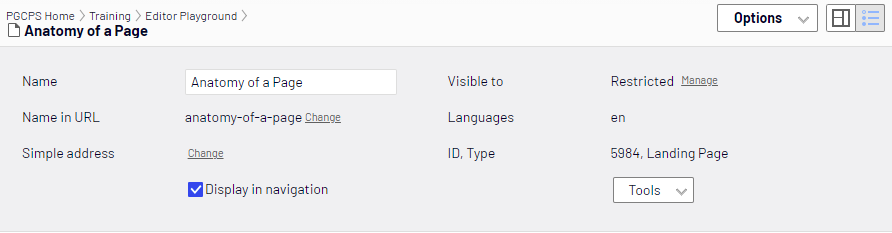
- Name – This is the name of your page.
- It is strongly recommended that you keep your page names short. Use the Title or Page Title properties to display longer strings of text.
- Want to change an existing page name? Contact websupport@pgcps.org to request the update.
- Name in URL – Optimizely automatically creates a URL, including the hierarchy of pages above the current page and ending with this alias. You may edit this part of the automatic alias.
- By default when creating new pages the text entered is also used for the Name in URL property. Because URLs must adhere to a strict industry standard, it is strongly recommended that you do not edit this property.
- If you need to change an existing page URL? Contact websupport@pgcps.org to request the update.
- Simple address – contact websupport@pgcps.org to use simple addresses
- Display in navigation – When you uncheck this option, the current page will not show in all menus, breadcrumbs, side navigation, etc.
- Visible to – Assign this content to specific groups of people, so only they can see it.
- Tools – Languages, Scheduling, Mark as Permanent “edit” (to let others know you’re still working on this page).
On-page Editing Details
You will see blue boxes as you move around the page.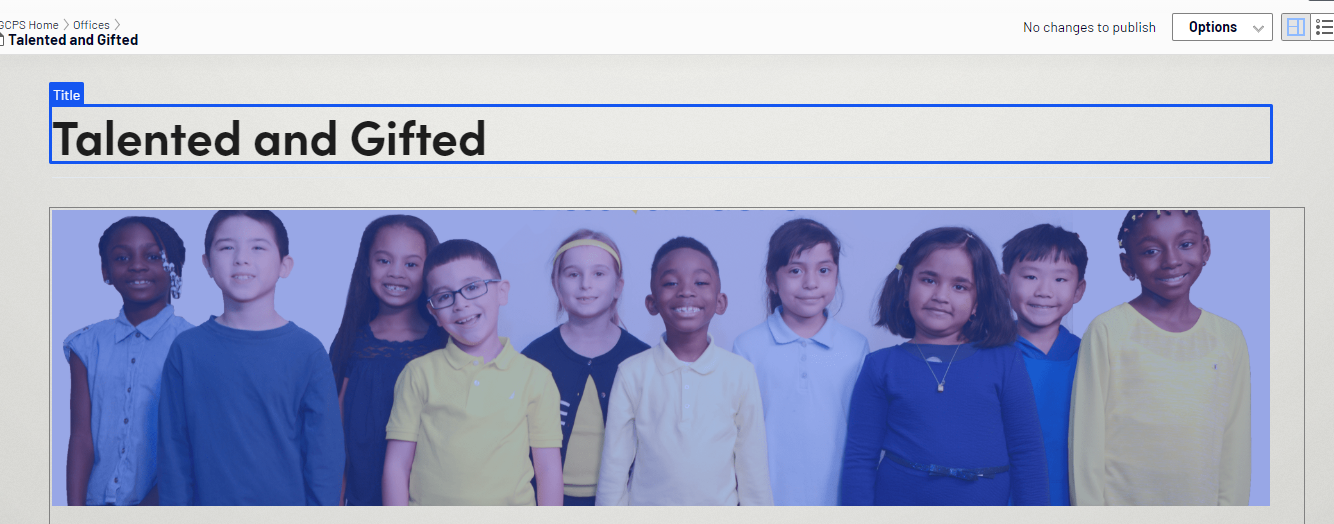
These blue boxes display the editable areas on the page. Depending on the item within the area, clicking the blue box displays different editing options.
Title
By default the name entered when the page was created is the page title. Enter text here to change the page title from that of the page name
Content Area
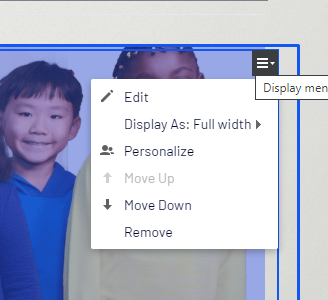
This area displays the page content blocks. In the top right of the highlighted block a menu icon is shown.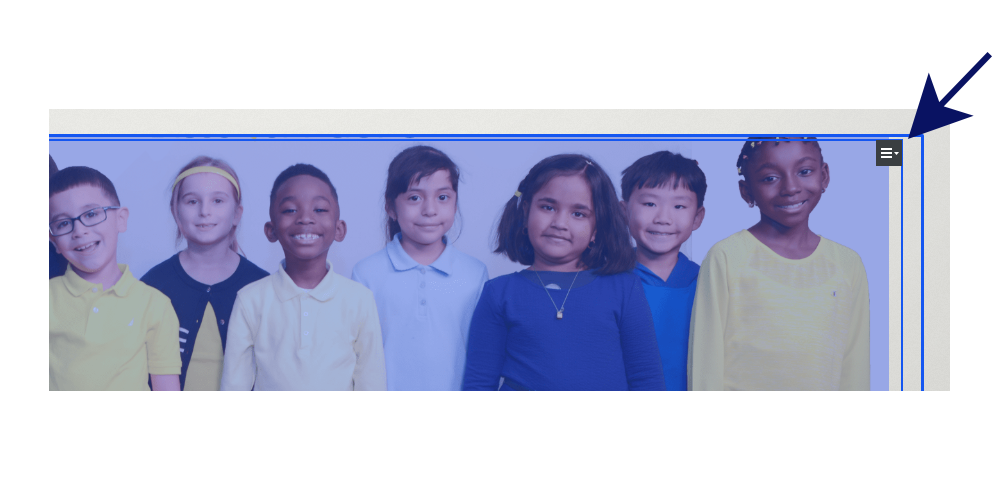
Once you click on that menu icon, it allows you to edit, change the block’s width, move it up or down the page, or remove it altogether
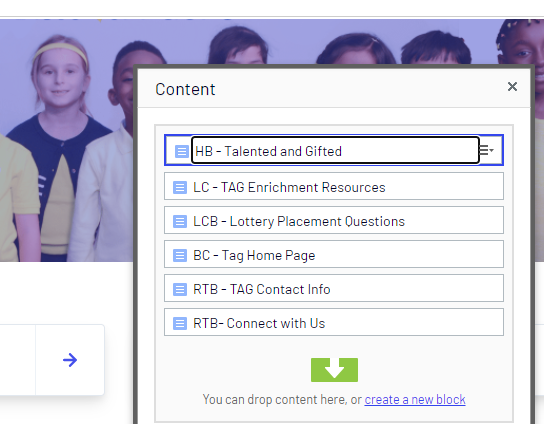
Alternatively, clicking within the Content area opens the content dialog box where you can access the context menu for editing, moving and removing items.
Quick Edit
You now have the ability to quickly edit existing blocks from "content drop zones", asset folders and container blocks.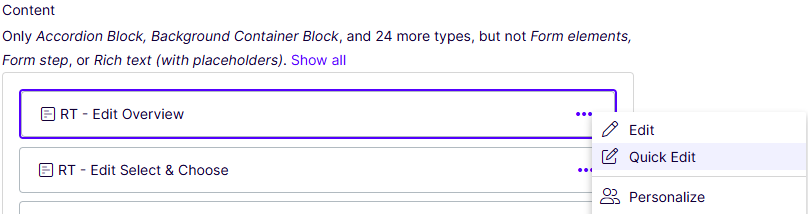
Selecting "Quick Edit" opens a dialog box that displays the properties of the selected item, allowing you to make edits. (Rich Text Block shown below)

Be sure to "Save" or "Publish Changes" after you complete your edits.
All Properties Editing Details
In this editing mode, you will see the page structure, naming properties, metadata and settings.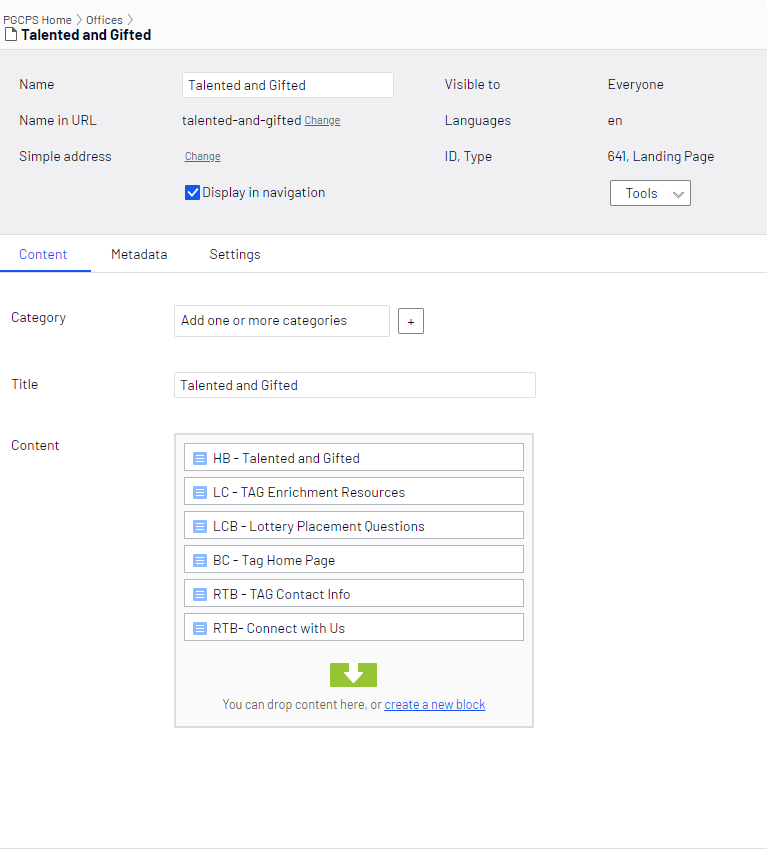
Metadata Tab
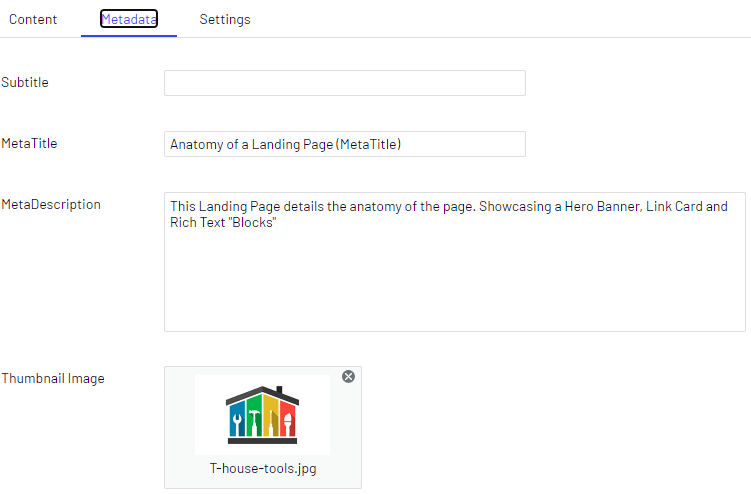
All pages include SEO fields, which not only help your pages rank higher with search engines, they also provide important information to the site.
- Meta Title
- Displays in Partial Pageviews
- Displays as the browser window/tab title.
- If blank, the title will be taken from the page name field.
- Meta Description
- Displays as the summary in Partial Pageviews
- Displays as the summary in most search engines.
- Gives search engines a sense of what content is available on the page (similar keywords, etc.)
Content Tab
The content tab varies according to which kind of page you create. See: Detailed Page List
Quick Edit
You now have the ability to quickly edit existing blocks from "content drop zones", asset folders and container blocks.
Selecting "Quick Edit" opens a dialog box that displays the properties of the selected item, allowing you to make edits. (Rich Text Block shown below)
Be sure to "Save" or "Publish Changes" after you complete your edits.
Settings Tab
Default settings when pages are created.
|
Property |
Description |
|
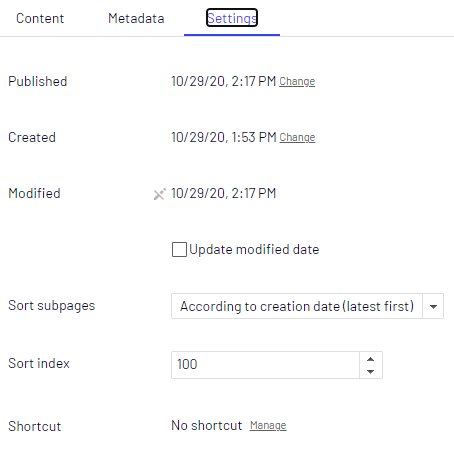
Sort Subpages |
The sort order is set for the parent page of a branch, and is inherited by the subpages. Default is creation date, alphabetical is also an option. |
|
Shortcut |
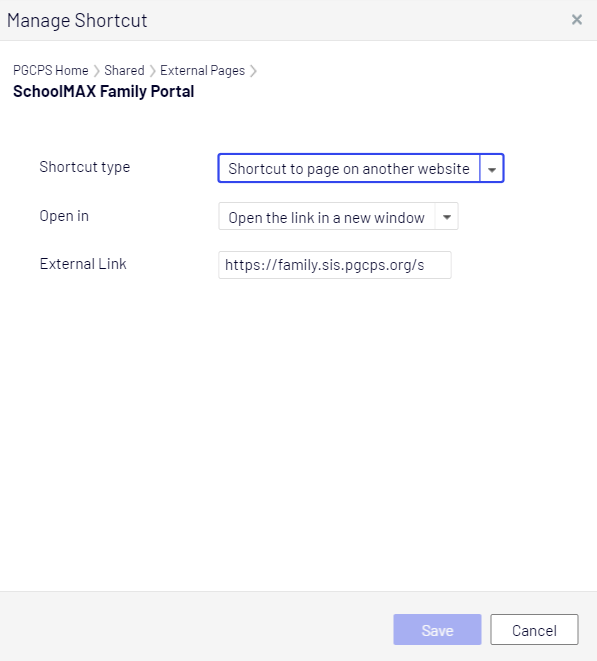
Select the setting tab and click the “Manage” link in the Shortcut field Set options: Shortcut Type: Shortcut to another content item (for internal pages) Shortcut to page on another website (for external web pages) Open In: Keep Blank (for internal pages) Open the link in a new window (for external web pages) External Link: Enter the URL of the external website Internal Shortcut - Browse to and select desired page Note: Pages in the navigation pane that have their shortcut set to another website receive a page icon with arrow |
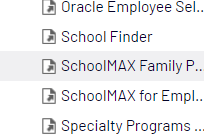 When a shortcut is set the page receives an alert:
Other Tabs
Tab properties vary according to which kind of page you’re editing. See: Detailed Page List