
Everything for Editors
Link to español pages
By default, content links default to the English language option. Optimizely allows editors to select the language version their page's link to, provided that version exists.
Prerequisites
- Determine if the español version exists
- View “All Properties” of the page you’re linking to
- Next to “Languages” look for an “es” link. If “es” is displayed the page has an español version created.
- Browse to the español version to copy its URL Note: Link text will begin with “https://www.pgcps.org/es/”
Linking from:
Rich Text (RT), Accordion Item (AI), Tab Child (TCB) & Link Card (LC)
- Highlight the link and select the “Insert/edit link” icon
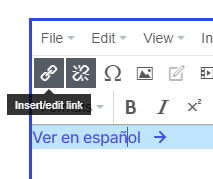
- In the Edit link form change the Language to español. Note: The page field name may change to the español name.
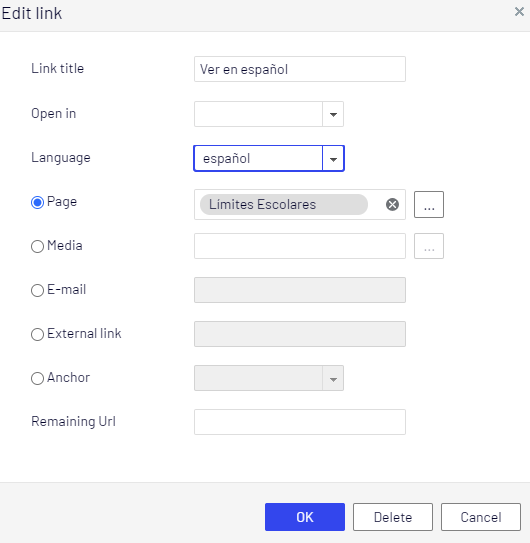
- Click “OK”
Page Shortcut
- Prepare & Copy the URL
- Check that Español links starts with: https://www.pgcps.org/es/
- At the end of your link paste: ?epslanguage=es
- Your link must not contain any spaces
- Example: https://www.pgcps.org/es/about-pgcps/boundary?epslanguage=es
- View “All Properties” for the page you intend to add to your Link Card’s “Link” field
- Select “Manage” in the Settings tab Shortcut field
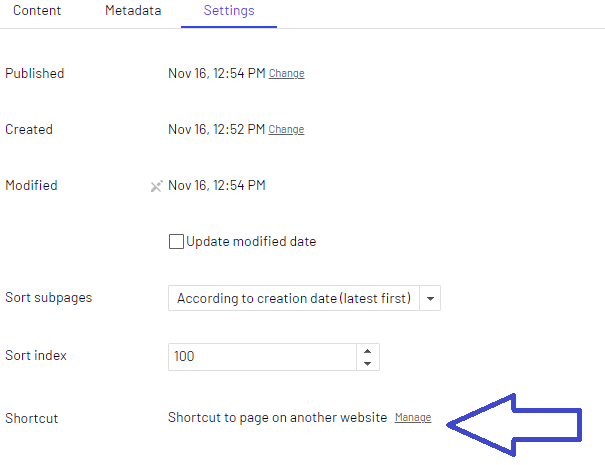
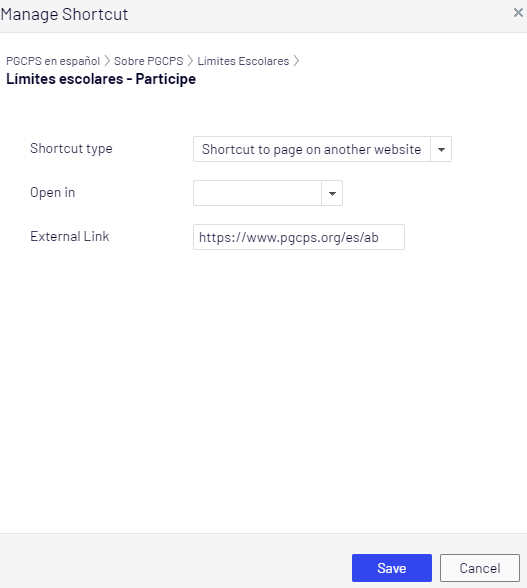
- Change the Shortcut Type to “Shortcut to page on another website”
- Paste the URL into the “External Link” field and click “Save”
- Publish the page
- This page will now redirect to the español version