
Everything for Editors
Create and Use Bookmarks
Bookmarks can be useful if a web page is very long, detailed or to target specific parts of the page. To create a bookmark - first create the bookmark, then create a link to it. When the link is clicked, the page will load and scroll down to the location with the bookmark.
Create Bookmark (Blocks)
Applies to Tab Child Blocks, Accordion Item Blocks & Background Container Blocks
- In the Url Suffix Property, enter text to be bookmarked. Note: this text must be unique, contain no spaces, special characters and is case-sensitive. Only one unique ID is allowed per page bookmark.
- Continue editing the block as needed.
Create Bookmark (In-Page, rich-text property)
Text formatted as a heading (H2, H3, H4, etc.) is recommended for creating section(s) of the webpage
- Enter text to be bookmarked.
- Format the text to your preferred heading. Note: be sure to follow proper heading hierarchy
- Select: View > Source Code
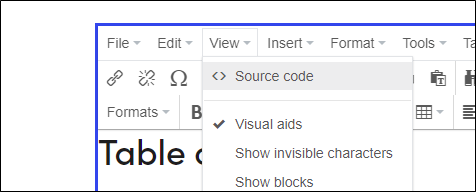
- Find the HTML tag of the heading and add an id attribute with a unique value
Ex: Note: the id value cannot contain any spaces and is case-sensitive
 - Un-Select: View > Source Code
Create Link
- For Link Card Block
- Select the Link property button

Continue to step 2.c. below - For Rich Text fields
- Enter text to be made into a link
- Highlight the text and select the insert/edit link icon

- On the edit link form:
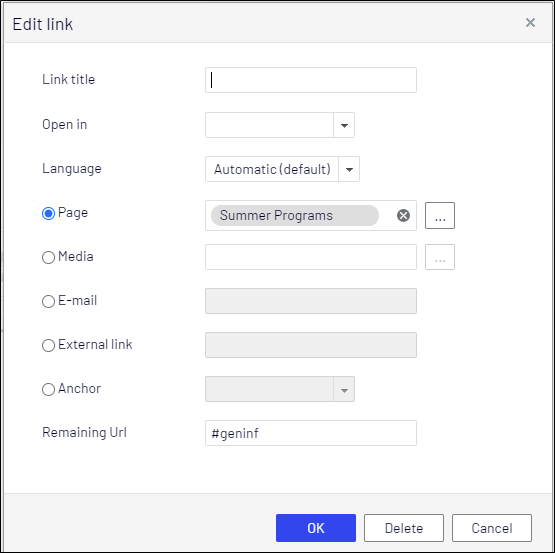
- Select the page where the bookmark resides
- In the “Remaining Url” field enter “#” plus the unique id value you gave the HTML id attribute or Url Suffix property when creating the bookmark
- Click “OK”
Publish Pages/Blocks and test
- Test to make sure your bookmarks work as intended.