
Everything for Editors
Understanding Page Defaults
Whether you're creating a new page or editing an existing page, understanding the default behavior and page properties is required to maintain a healthy website. We suggest accessing & editing the page defaults in the all properties view.
Search & SEO Fields
All pages include Search Engine Optimization (SEO) fields, which not only help your pages rank higher with search engines, they also provide important information to the site.
Using search is the top resource our audience uses to find relevant information. Knowing the hierarchy of the SEO fields is critical to understanding how our audience finds & views your pages, images and documents.
Page Name
By default the name you give a page is the text displayed in search results.
Content > Title
The text in the Title or Page Title fields takes precedence over the Page Name.
Metadata > MetaTitle
The text in the MetaTitle field takes precedence over Content > Title & Page Name
Metadata > Meta Description
Displays as the summary in most search engines. Gives search engines a sense of what content is available on the page (similar keywords, etc.)
All Properties - Header
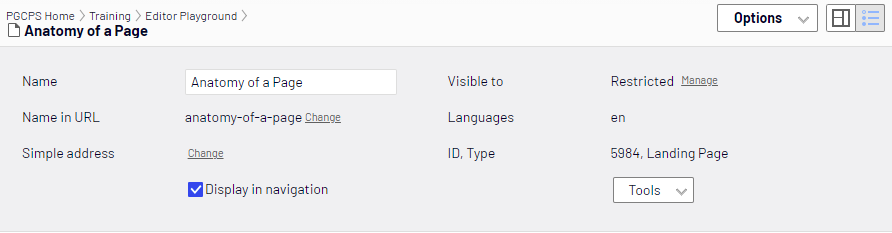
- Name - The name of any given page is very important because:
- By default, this becomes the “Name in URL”
- Note: Best practice suggests not changing the Name in URL. Typically you will only make a change here if you had to rename your page. Be Warned, in the event you change the Name in URL all external links referencing the previous Name in URL will break.
- Will display in the pages breadcrumb trail
- Will display as header (H1) on page.
- Will display in our search engines
- Will display in the browser tab on the page.
- By default, this becomes the “Name in URL”
- Name in URL – Optimizely automatically creates a URL, including the hierarchy of pages above the current page and ending with this alias. You may edit this part of the automatic alias. (see note above)
- Simple address – This is in addition to the automatic alias. Note: Used for marketing campaigns only. Email websupport@pgcps.org for details and approval.
- Display in navigation – This does not currently affect your site. Used for administration purposes
- Visible to – Assign this content to specific groups of people, so only they can see it. Defaults to everyone. Email websupport@pgcps.org for group creation and access.
- Tools – Languages, Archiving, Mark as Permanent “edit” (to let others know you’re still working on this page).
All Properties - Content Tab
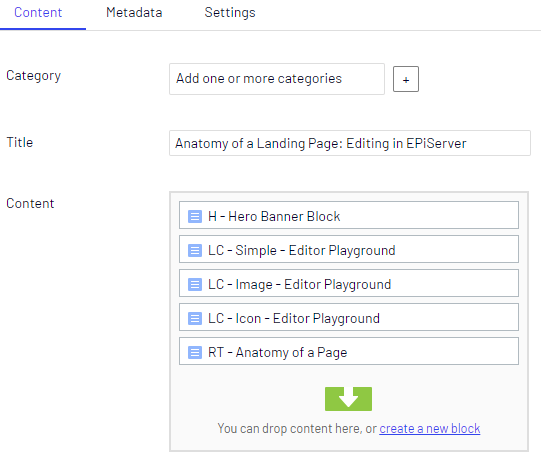
- Category - Used for administration purposes
- Title
- Example... Page name is “Anatomy of a Page” whereas the page title is “Anatomy of a Page: Editing in Optimizely”
- The page title can differ from the page name.
- Will display in the pages breadcrumb trail
- Will display as header (H1) on page.
- Will display in our search engines
- If left blank, the page name will be used.
- Content
- Area that allows you to drag in pages from the navigation pane and/or blocks from the asset pane. You can edit each element's layout.
- Note: while it is possible to create blocks from the content area drop zone, it is not advised to do so. New blocks should only be created in your “Blocks” folder!!!
All Properties - Metadata Tab
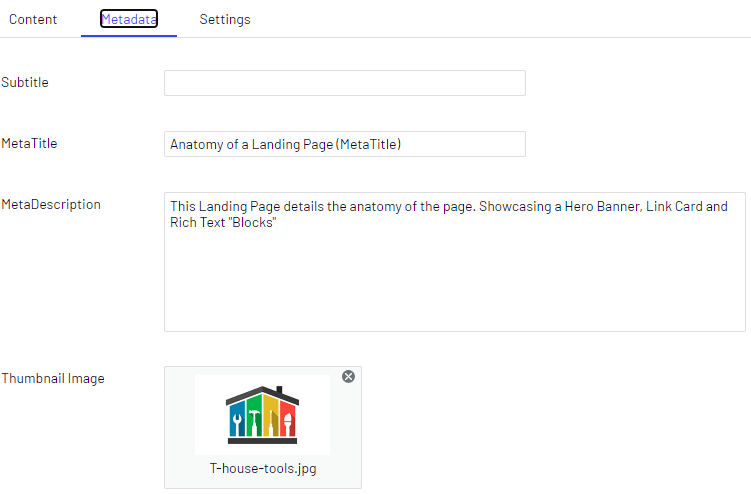
The fields found here represent Search Engine Optimization (SEO) fields. They help your pages rank higher with search engines and also provide important information to the site.
- Subtitle - Used for administration purposes
- MetaTitle
- Will display in our search engines
- Will display in the browser tab on page: Example...
- MetaDescription
- Will display as the summary under the page title and in our search engines
- Will display as the summary in “Partial Page views”
- Thumbnail Image
- Drag-and-drop from the media assets pane or click inside the box to add an image.
- Recommended size: 333px x 197px
- Will display as the image on a page’s corresponding partial page view
All Properties - Settings Tab
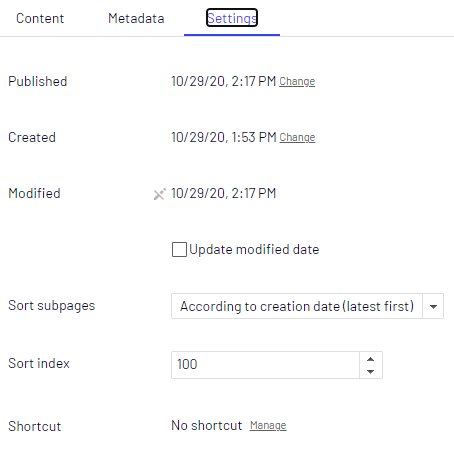
All but two of these fields are used for administration purposes:
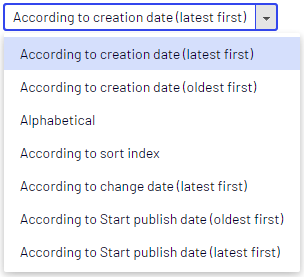
- Sort subpages - sorting options for how pages are displayed in the navigation pane
- Shortcut - field used to create redirects to other content items or External websites