
Everything for Editors
How to Create a Supportive Page for external Partial Page Views
What are external Partial Page Views and why are they important?
External Partial Page Views are any webpage not a part of our official www.pgcps.org website domain. If it does not exist in the Optimizely editor then it is considered external content.
Search is the top resource our audience uses to find web content. Maintaining a healthy web system with created pages (and documents) that’s simple to read and understand from our audiences point-of-view is our #1 priority. The name you give these pages when creating is the text displayed when found through search engines. Having a thorough understanding of page defaults & search optimization is essential.
As you create content and set the display of your items, sometimes you’ll want to present your pages as “cards” also known as Partial Page Views. Supportive Pages is an area where you can group together all of your important pages that use the Shortcut Property to redirect users to an external website.
Prerequisites
- URL of the External website
- Landing Page (Offices) or School General Detail Page (Schools) named “Supportive Pages” in the navigation pane under your office or school
- No Supportive Page created?
- Create a Page named “Supportive Pages”
- Add Created Supportive Pages to the Content property, set your display options and publish.
- Supportive Page Created?
- Add Created Supportive Pages to the Content property, set your display options and publish.
Creating Supportive Pages
- Highlight the Supportive Page context menu and select “New Page”
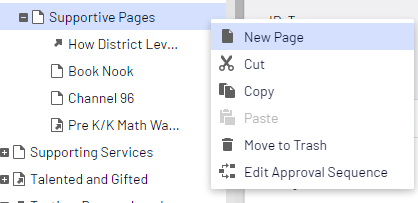
- Name the page and select “Landing Page” as your page type
- Fill out the appropriate page defaults (ie. Metadata title, thumbnail image and MetaDescription if applicable)
- In the “All Properties” view select the setting tab and click the “Manage” link in the Shortcut field
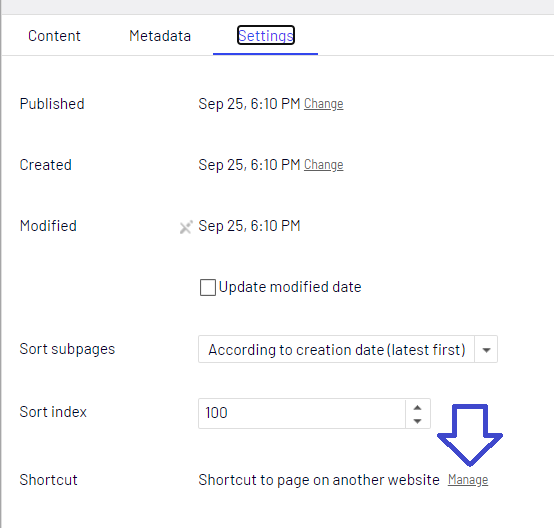
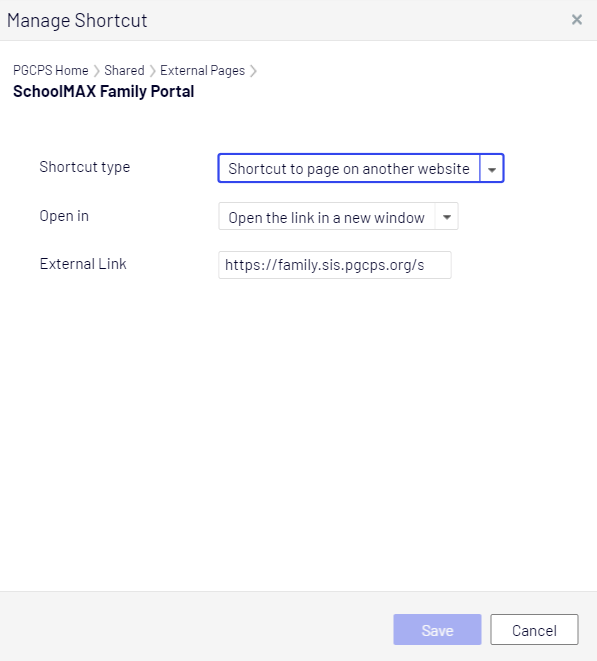
- Set properties:
- Shortcut Type: Shortcut to page on another website
- Open In: Open the link in a new window
- External Link: Enter the URL of the external website
- Click Save
- Publish the page
- Add the Page to the Supportive Page’s content property and set your display options
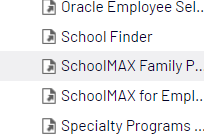
- Note: Pages in the navigation pane that have their shortcut set to another website receive a page icon with arrow.
Examples
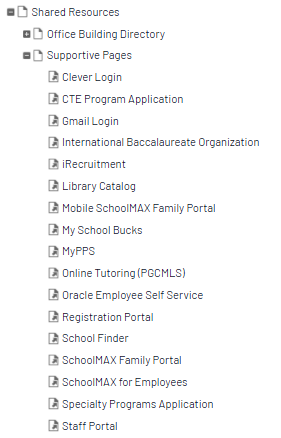
Image displays list of our shared Supportive pages (Navigation Pane) for you to use as needed
Description: