
Everything for Editors
What is a Block?
Summary
Blocks are highly customized content types that allow editors to present information in a consistent, structured, shareable and reusable manner. Blocks work hand-in-hand with pages, pages contain the blocks and blocks contain detailed information you want the audience to view.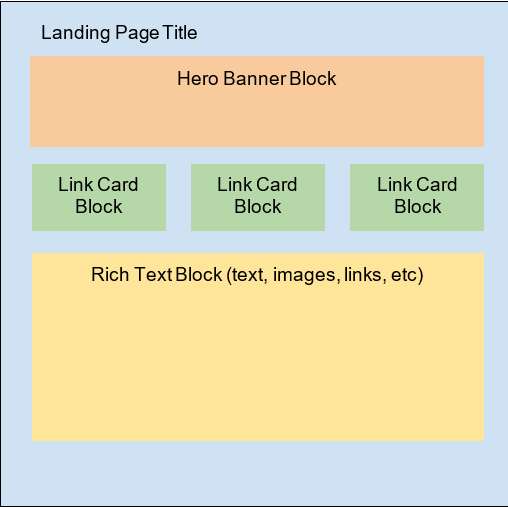
Managing Blocks
- The assets pane on the right has three tabs: Blocks, Media, and Forms.
- These tabs share the same folder structure.
- Select the Blocks tab and click the blocks folder to see the blocks stored there.
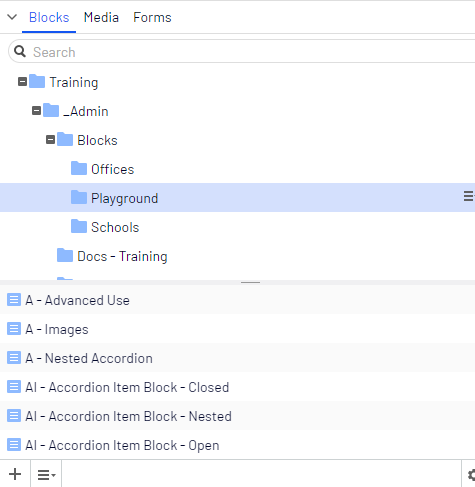
- Select the Blocks tab and click the blocks folder to see the blocks stored there.
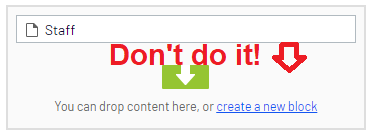
- You should only create new Blocks in your “Blocks” folder. DO NOT create blocks in properties that allow the ability to create them (see image.) Use Drag & Drop to add assets to these properties.
- Adhering to our Naming Convention when creating new Blocks is critical to maintaining a healthy system.
Basic Terminology
- Block Type
A type of block template that can be used within pages.- Container Blocks
A type of block used to display blocks within- Accordion
- Background Container
- Tab Block
- Container Blocks
- Property
A property is a field within a block type that holds a piece of content or information for that item. An example of this would be a rich text field, an image selector, a text field, or a content area, just to name a few. - Content Area
A type of “drop zone” property where you can drag and drop multiple blocks, pages or media depending on how it’s configured.
List of Block Types
Notes
By default the information within a published block is not entered into our search engine until the block is placed onto a published page. Learn more about Creating Pages and Blocks.