
Checklist: Before you Publish
Edit a Block
Locate Block & Edit
Blocks are located on Pages and in your Asset Pane Blocks subfolder. While logged in to Optimizely, you can load any public webpage to access the editor by clicking the orange epi button:  . Doing so loads the editor to the page you're viewing. After you've loaded the page into the experience editor, determine the Block Type and location within the page before you begin editing. Select the options menu
  next to the block to edit.
Quick Edit
You now have the ability to quickly edit existing blocks from "content drop zones", asset folders and container blocks.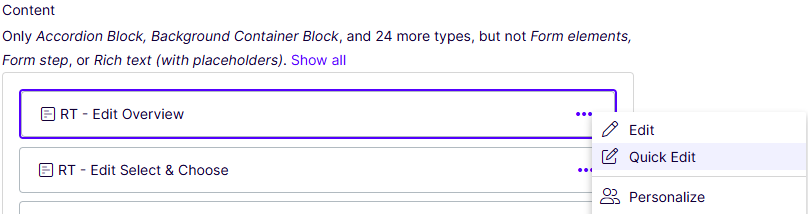
Selecting "Quick Edit" opens a dialog box that displays the properties of the selected item, allowing you to make edits. (Rich Text Block shown below)

Be sure to "Save" or "Publish Changes" after you complete your edits.
Publish, Send for Review or Schedule
Now that you've created pages and blocks and used them somewhere, you must now complete the workflow process:
Publishing
Published content is instantly available to the public, it will be live in search immediately.
Schedule
Review: Schedule and Archive