
Watch: Video Tutorials under Content Approvals
What is a Project?
Summary
A project lets you manage the publishing process for multiple related content items. For example, you can add a landing page, blocks and assets to a project and publish them all, manually or scheduled, at the same time. The projects feature supports management of content in different language versions, so you can manage translation of content items in projects also.
Why use Projects?
Benefits
- Project comments are a good way of adding information about your edits, very useful if you don’t make updates often or when multiple editors are associated.
- Group your items together through the project Overview.
- Ability to preview pages & blocks in real time without publishing.
- Publish both the Spanish and English versions at the same time.
- Clear indication of content status: ie. Published, Ready to Publish, Draft, In Review, etc.
- Highlighted comments allow for collaboration between editors & translations.
How to Use the Optimizely Project Overview to Publish Page Assets Including Images

Description:
There are different ways to publish content in Optimizely. One of the most efficient ways is to use the Project Overview. The Project Overview allows you to select as many items as you want and publish them all at once. It is also the best area to check for items you may have missed if you were publishing content as you were working. We recommend always checking the Project Overview before you are done editing.
Project Bar

When you first access the edit view with the projects feature enabled, no project (None) is selected in the project bar. When you select a project, it is preselected the next time you open the user interface.
Note: When selecting projects it is strongly recommended that you next select Overview, this forces a refresh of your browser. If changing to None (use primary drafts) select an item and refresh your browser. Double checking that you’re in the correct project is critical to managing your content.
If a project is active—that is, is selected in the project bar—all changes (creating a new page or block, updating existing content, uploading an image or file and so on) are automatically associated with that project.
If you select the option None (use primary drafts), you can work with content items as usual without associating them with any projects.
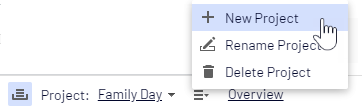
From the context menu on the project bar, you can create, rename and delete projects.
Naming Projects
Office editors preface your project with “Office-” For school editor's preface with “School-” If you delete a project, associated items are not deleted but are no longer associated with a project.
Project Overview
From the projects bar, you can open an overview that displays content items associated with the active project.
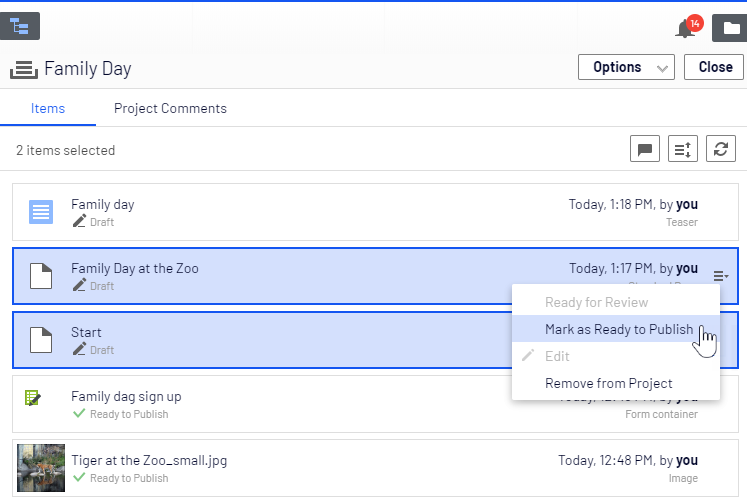
The overview shows details such as name, content status, content type, and time and date for the latest change of each content item.
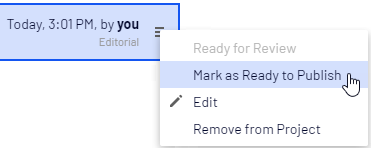
Each content item in the overview has a context menu from which you can set the item to Ready to Publish, open it for editing and remove it from the project, providing you have Edit access rights. The context menu button appears when you hover over an item.
You can select multiple items in the overview and remove them from the project or set them as Ready to Publish all at the same time. Common computer mouse and keyboard functionality for selecting multiple items is supported, except for CTRL+A which is not supported.
From Options in the overview, you can publish all items that are set to Ready to publish immediately or schedule them for publishing at a later time.

Show comments opens a view where you can select a project item and see a list of events connected to the item. You can add comments on each event and also reply to comments.
Use Sort  to order content items for a better overview, and Refresh
  to reload the view if there are multiple editors working on the same project.
Content Status
 |
Draft of a new page; not visible on the website yet. |
 |
Page that is set to Ready to Publish. |
 |
Page that is set to Rejected. |
 |
Page is currently In review and must be reviewed and approved before it can be published. |
 |
Previously published page; not visible on the website anymore. See Working with versions for more information. |
 |
Published page. Note: This icon appears for project items; not in the Pages navigation pane. |
 |
You do not have the rights to publish this item or the specific item version does not exist anymore. Note: This icon appears for project items; not in the Pages navigation pane. |
Terminology
- Draft - Content that is a work-in-progress and is not yet subject to any publishing actions.
- Published - The most recently published version and the one publicly displayed. Only one published version can exist.
- In review - Content must be approved before it can be published.
- Previously Published - One or more versions that were published before the latest published version.
- Ready to Publish - Content awaiting approval and publishing.
- Rejected - The content was set as Ready for Review and an approver has rejected the content. You can edit and update the rejected content and then set it to Ready for Review again.
- Scheduled for Publish - Content scheduled to be published at a specified time.
- Expired - Content where a stop publish date and time is set and passed. The stop publish date applies to all versions of a page, which means that you cannot have one version of a page that is expired and one that is published.
Working With Projects
Creating a project and adding content
You create a new project from the context menu on the project bar. When you create the project, it is automatically set as the active project. Note: refresh your browser and double check the project you created is active. To add a content item to the active project: make an editing change (such as creating a page, updating existing content, uploading an image and so on), and the content item is automatically associated with the project. You can also drag and drop items from the navigation or asset panes into the project overview to associate them with a project.
Adding previous versions of content
You have the ability to edit previous versions of content. This is especially useful if you created new unpublished content in the wrong project and need to associate the items with the correct “active project.” Note: If transferring items between projects, be sure to remove them from the “old” project.
- Customize the experience editor to add the Versions gadget.
- Double check you have the correct active project selected.
- Select and load the item into the editor.
- In the Versions gadget select and view previous versions of the content.
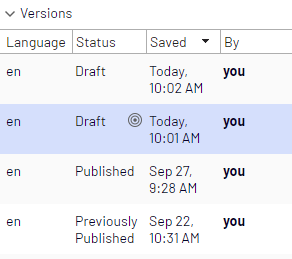
- Determine the version needed for further edits then make an editing change (update a property value.) The content item will be automatically associated with the active project.
Editing content in projects
You will see a notification if the version you are working on is associated with the active project.

Content not associated with the active project but with another project is locked for editing. However, even if that version is locked for editing, you still can create a new draft with the New Draft from Here button in the yellow toolbar. That draft is associated with the active project, or to no project at all if None (use primary drafts) is selected.

If you want to make a change that should not be associated with the active project, you have to select None (use primary drafts) or another project from the project bar. When None (use primary drafts) is selected in the project bar, you can create drafts, publish content and so on, as long as the content version is not associated with a project.
Content items that are part of a project remain so even after they are published.
Uploading media to projects
If you upload media (Images, PDFs, Docs, etc.) while a project is active, it is automatically associated with the active project. Note: If you have a project active when you upload a media file, you must manually publish the media file. Conversely, if you add/update a media asset while not working in an active project the asset is published immediately. Approvals are not set up for media assets.
How to preview content
Collaborating on projects
You can add comments on project items in the project overview and, for example, ask other editors to review an item. This feature is described in Commenting
Publishing project items
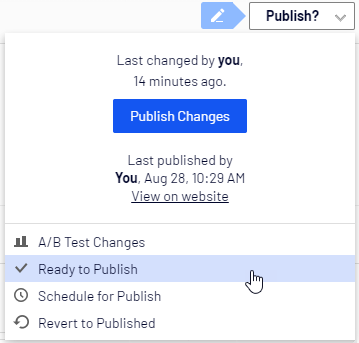
From the project overview, you can publish multiple items that are set to status Ready to Publish. You can set items to Ready to Publish from the publishing menu while editing an item, from the context menu in project overview, or from the Project Items navigation pane. You can select multiple items and set them to Ready to Publish, both from the overview and the navigation pane. You publish the content items associated with the project, not the project itself.
How to Use the Optimizely Project Overview to Publish Page Assets Including Images
Description:
There are different ways to publish content in Optimizely. One of the most efficient ways is to use the Project Overview. The Project Overview allows you to select as many items as you want and publish them all at once. It is also the best area to check for items you may have missed if you were publishing content as you were working. We recommend always checking the Project Overview before you are done editing.
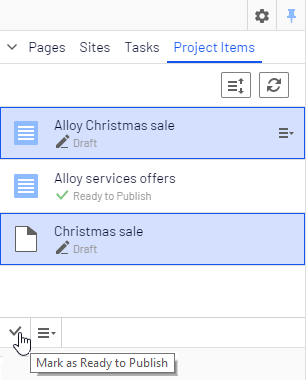
When items are ready for publishing, you can publish them directly from Options, if you have publishing access rights, or schedule the project to be published later.
Note: If the items in a project were scheduled for publishing and you add new items to the project, the new content is not scheduled for publishing automatically. You must specifically set the new content to scheduled time of publishing if you want it to be published at the same time as the other items in the project.
If you need to edit content that is scheduled, select Remove Scheduling and Edit, edit the content and reschedule. You can continue working with a project after it is published.
Clean-Up & Removing project items
Clear the clutter! Having published items not currently associated with the work you're doing can make the project interface confusing and overbearing. After you’ve published project items it’s a good idea to remove them from the project.
Note: If working in a project with translation approvals, you can remove Spanish items as well, just be sure the item has been published. Editors in each language have the ability to remove all project items.
Removing Content
Remove a content item from a project by selecting the item in the project overview or from the project items navigation pane and then selecting Remove from Project from the item's context menu. Removing a content item from a project means that it is no longer associated with the project but it is not deleted from the website.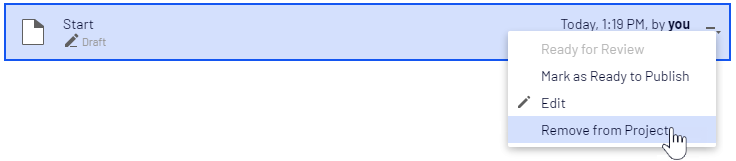
Deleting Projects
Delete a project by selecting the project in the project bar and then select Delete Project from the context menu. Associated content items are not deleted but are no longer associated with a project. You cannot recover deleted projects. When deleting a project with items scheduled for publishing, you can keep or remove the scheduling for each item.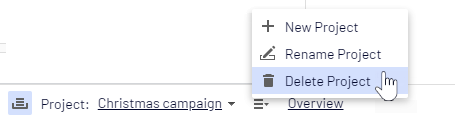
Note: DO NOT DELETE projects associated with approvals, doing so would wipe out the comments history of collaboration between editors. If you have any questions email websupport@pgcps.org