
Everything for Editors
Navigation Gadget Overview
The navigation pane displays tabs for PGCPS page tree structure, language branches, tasks and project items. Below you’ll find detailed information about each tab.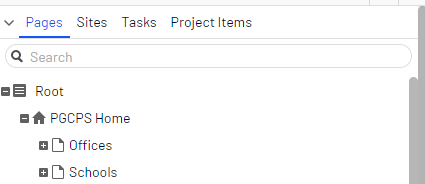
Tabs
Pages
The page tree structure is located in the edit view under Pages. At the top of the structure is the root page, with our PGCPS home page directly underneath. The structure of the website is made up of pages. By default, the page structure is reflected in the public navigation menus. To simplify navigation, limit the submenu structure to a maximum of three levels. By hovering over a page in the tree structure, information about the page appears, such as ID and page type.
Page URLs
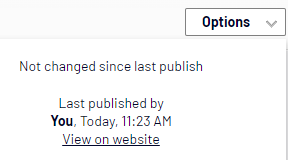
To get the page address (URL) or hyperlink the page must 1st be published. Once published use the page Options Button "View on Website" link to copy the page URL.
Note: some of these icons are only displayed for the first draft version of a page, before any published version exists.
 |
The root page. |
 |
Start page. |
 |
Published page. |
 |
Page that links to another page on the same website. |
 |
Page that links to an external website or a specific address. See How To: Create a Supportive Page for External Partial Page Views. |
 |
Page contains a shortcut that is not linked anywhere; it only displays the text and is used to create a heading with no link in the menu. |
 |
Page that fetches and displays content from another page on the same website. |
 |
Container page used for storing other pages; not visible on the website. |
 |
Draft of a new page; not visible on the website yet. |
 |
New page scheduled for publishing; not visible on the website yet. How To: Schedule content for publishing |
 |
Expired page; not visible on the website anymore. See How To: Expire and Archive content for publishing. |
 |
Page that is set to Ready to Publish. |
 |
Page that is set to Rejected. |
 |
Page is currently In review and must be reviewed and approved before it can be published. |
 |
Previously published page; not visible on the website anymore. |
 |
Page locked for editing for the logged-in user. |
 |
Page being edited by another user. You can see who by hovering your mouse over the icon. |
 |
Published page. Note: This icon appears for project items; not in the Pages navigation pane. |
 |
You do not have the rights to publish this item or the specific item version does not exist anymore. Note: This icon appears for project items; not in the Pages navigation pane. See What is a Project?. |
Removing Content
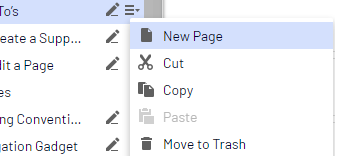
Removed folders, pages, blocks and media files are moved to trash, and are not publicly available on the website. Remember to update any links to removed content. When you remove a page, all underlying child pages are removed also. Note: Trash is cleared every 60 days.
Sorting page order in menus
See: Settings in All properties view on How To: Edit a Page
Sites
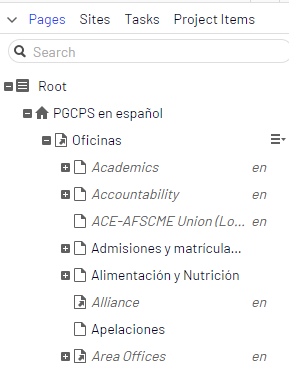
The Optimizely user interface is available in English and Spanish, select the desired language to work with. The user interface reloads, displaying the page tree in the selected language. Our master language is English, if you switch to Spanish, all pages that are not yet translated into Spanish are displayed in italics in the page tree and with the en language code for English. Pages that exist in Spanish are displayed in normal font. More information about Translating content.
Tasks
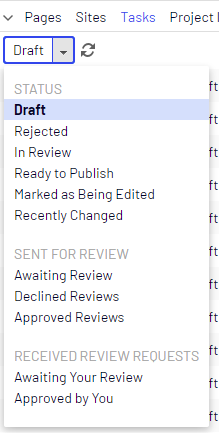
|
Option |
Description |
|
Draft |
Lists all draft versions that have been created or changed by you. |
|
Rejected |
Lists all content items in status Rejected that have been created or changed by you. Items are set as Rejected when they have been set to Ready for Review or Ready to Publish and then are declined. You can edit and update content in status Rejected before you set it to Ready to Publish or Ready for Review again. |
|
In Review |
Lists all content items on the website that are set as Ready for Review. |
|
Ready to Publish |
Lists all content items on the website that are set as Ready to Publish and that you have publish rights to. |
|
Marked as Being Edited |
Lists all content items on the website that you have set as being edited. |
|
Recently Changed |
Lists the last items that are changed for the website by you or any other editor. |
|
Awaiting Review |
Lists the content items that you have sent for review and are in content status In Review. |
|
Declined Reviews |
Lists the content items that you have sent for review and are declined items in content status Rejected. As soon as the item is updated, it is not displayed in this list anymore. |
|
Approved Reviews |
Lists the content items that you have sent for review and are approved, that is in content status Ready to Publish. As soon as the item is published (or updated), it is not displayed in this list anymore. |
|
Awaiting Your Review |
Lists the content items that you are one of the designated approvers of. |
|
Approved by You |
Lists the content items you have approved. As soon as the item is published (or updated), it is not displayed in this list anymore. |
Clicking a content item in the filtered task list displays the item in the main area. Use the versions gadget to see the version history for that particular content item. If you have publishing access rights, you can decide upon further publishing actions from the versions gadget.
Project Items
See: What is a Project?