
What is an Office Page?
The analogy we like to use is to think of web pages as empty "Houses."
- Question: What benefit does a House provide?
- Answer: An address!
In web terms the address (URL) can be used in a variety a ways, ie. search, marketing, etc.
- Question: If pages are "houses" how do I display content/information?
- Answer: Decorate your house with rooms!
If houses are empty containers then you need to create rooms to display your information. In Optimizely this is where blocks come in to play. Learn more about creating pages/blocks and how to use them.
Summary
Before you can understand what a page is, understanding basic terminology, navigation structure and the main properties is equally important. Office editors have a number of page types & default page properties available to display content.


Basic Terminology
- Page Type
A type of page template that can be used to create pages within the Navigation pane. Here is a detailed list of page types for editors. - Are pages Containers?
Think of pages as a basic folder for content. The page itself has a limited view to it. So, if you navigate to it, you would see nothing more than the page's title or name wrapped within your school or office header and footer. School homepages & Office Detail Pages contain highly stylized areas with predetermined content types set to display a certain way. - Blocks
Blocks are highly customized content types that allow editors to present information in a consistent, structured, shareable and reusable manner. - Property
A property is a field within a block type or page type that holds a piece of content or information for that item. An example of this would be a rich text field, an image selector, a text field, or a content area, just to name a few. - Content Area
A type of “drop zone” property where you can drag and drop multiple blocks, pages or media depending on how it’s configured. - Partial Page Views
"Cards" that can display within pages. These "Cards" link to the page and may contain additional optional details (i.e. Image, title & description) - Context Menu

Dynamic options menu on the right side of items on mouse "hover", select to see the list of available options. - Parent and Children Nodes
Our Page navigation follows the Tree data structure. Tree data structure is a collection of data (Node ie. Our Pages ) which is organized in hierarchical structure recursively.
Navigation Structure
- The page navigation pane on the left side of the Experience Editor is where your pages are managed for your office or school site. Root > PGCPS Home > Offices or Root > PGCPS Home > Schools
- The page structure within this pane represents the actual structure of your site. Some of the menus & breadcrumb trail within your site will display in the same order as you see in this pane.
- Any pages within this pane can be hidden from the menu simply by unchecking the Display in Navigation property on each page.
- A website typically has multiple page types for creating pages with specific requirements. View a comprehensive list of page types.
Main Page Properties
Every page has some basic properties which are always available, located at the top of the editor.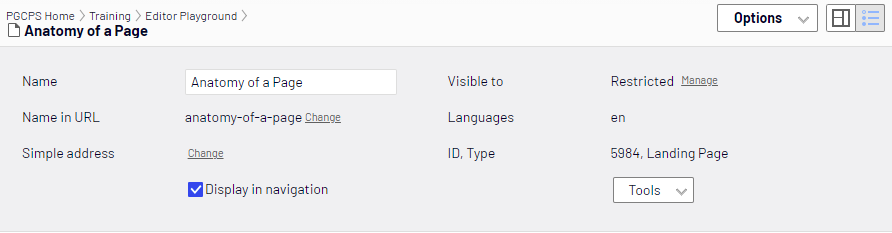
- Name – This is the name of your page.
- It is strongly recommended that you keep your page names short. Use the Title or Page Title properties to display longer strings of text.
- Want to change an existing page name? Contact websupport@pgcps.org to request the update.
- Name in URL – Optimizely automatically creates a URL, including the hierarchy of pages above the current page and ending with this alias. You may edit this part of the automatic alias.
- By default when creating new pages the text entered is also used for the Name in URL property. Because URLs must adhere to a strict industry standard, it is strongly recommended that you do not edit this property.
- If you need to change an existing page URL? Contact websupport@pgcps.org to request the update.
- Simple address – contact websupport@pgcps.org to use simple addresses
- Display in navigation – When you uncheck this option, the current page will not show in all menus, breadcrumbs, side navigation, etc.
- Visible to – Assign this content to specific groups of people, so only they can see it.
- Tools – Languages, Scheduling, Mark as Permanent “edit” (to let others know you’re still working on this page).
The Title Property
The Title Property is used to provide additional information within the page’s heading(H1.) When creating New pages, the name used is the default text displayed as the heading. It is strongly recommended that you keep page names short and use the Title Property to enter longer strings of text. (See: CEO example) Note: This property is named “Page Title” for the District Office Detail pages.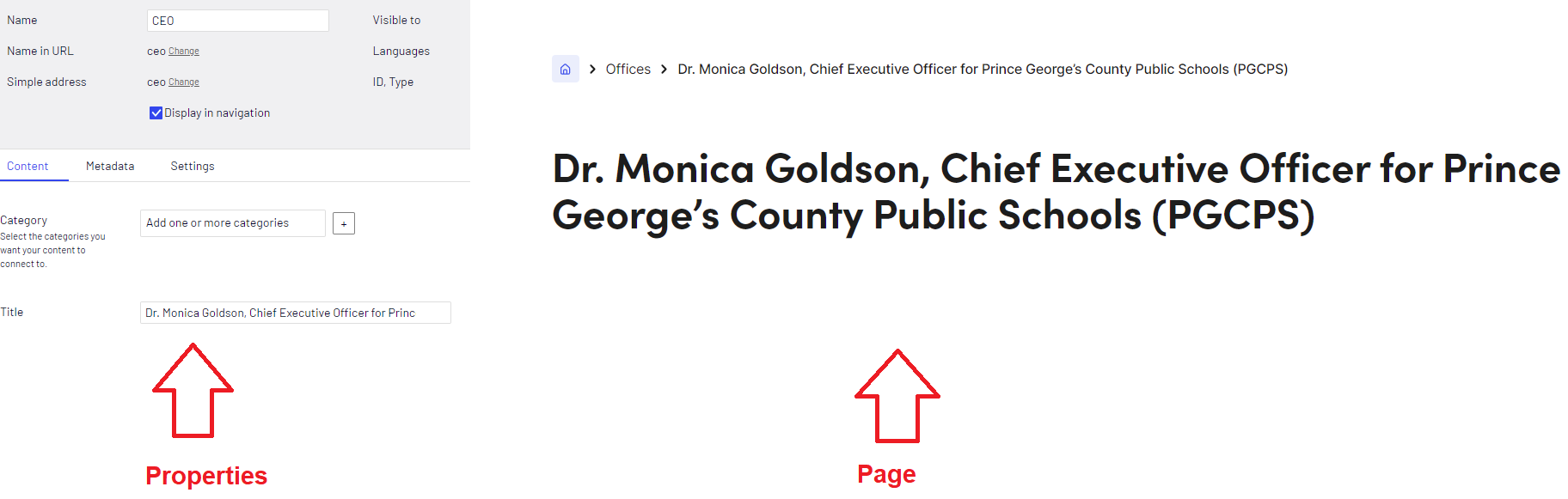
Metadata Tab
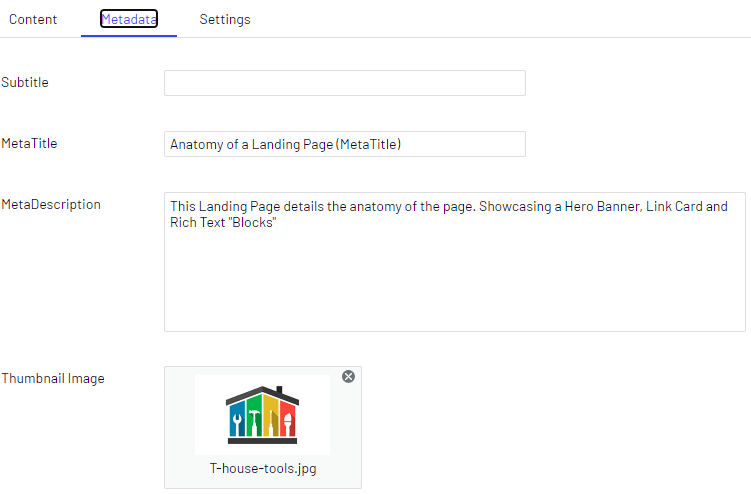
All pages include SEO fields, which not only help your pages rank higher with search engines, they also provide important information to the site.
- Meta Title
- Displays in Partial Pageviews
- Displays as the browser window/tab title.
- If blank, the title will be taken from the page name field.
- Meta Description
- Displays as the summary in Partial Pageviews
- Displays as the summary in most search engines.
- Gives search engines a sense of what content is available on the page (similar keywords, etc.)
Notes
Page Name
- It is strongly recommended that you keep your page names short. Use the Title field for longer strings of text.
- Name the page incorrectly at creation? We suggest deleting (Move To Trash) the page and creating anew; otherwise, you’d have to edit the Page Name & Name in URL properties which contains its own set of rules that increases the risk of breaking page links.
- Want to change an existing page name? Contact websupport@pgcps.org to request the update.
Name in URL
- By default when creating new pages the text entered is also used for the Name in URL property. Because URLs must adhere to a standard it is strongly recommended that you do not edit this property.
- If you need to change an existing page URL? Contact websupport@pgcps.org to request the update.